显示标签为“flowchart creator”的博文。显示所有博文

2017年1月17日星期二

Create a Social Media Flowchart Effortlessly

As the popularization of mobile phones, social media is becoming an integral part of online life. More and more social websites and applications proliferate. Following are some guidelines to create a professional social media flowchart.

Introduction of Social Media and Social Media Flowchart

Social media is the collection of online communications channels which enable people around the world to interact with each other by sharing and consuming information, ideas, career interests and other forms of expression. They change the way individuals and large organizations communicate. There are many types of social media, such as blogs, business networks, enterprise social networks, forums, microblogs, photo sharing, products/services review, etc. And Facebook, Twitter, Google+, Wikipedia, Linkedin, Reddit, Pinterest are prominent examples among the different types of social media.
Social Media Flowchart is a diagram flow which depicts the detailed steps to use a social medium. Users will find those new social media easy to use if there is a vivid flowchart with specific steps description.

Steps to Create a Social Media Flowchart

Creating a social media with a smart flowchart creator can save us a lot of time and energy. Just follow the below steps and you will find drawing a flowchart is much easier than you have thought.
  1. Determine which social media flowchart to create.
  2. Think in mind how to process the flowchart.
  3. Drag and drop flowchart symbols on the page.
  4. Text each step into right symbols.
  5. Connect the symbols with arrow in order.
  6. Complete and improve the social media flowchart.
After finishing those 6 steps, a professional and attractive social media flowchart comes out. And below is an example for your reference.

More Flowchart Types

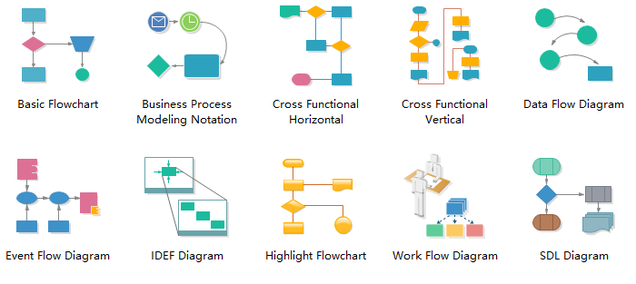
Except for social media flowcharts, there are many other types of flowcharts, including BPMN flowcharts, cross-functional horizontal and vertical flowcharts, data and event flow diagram, IDEF and SDL diagrams, etc. Just click flowchart types to view different and download flowchart templates if any interest.
2016年12月29日星期四

How to Create an Audit Flowchart

Financial audit, as an objective evaluation of an organization's financial reports and financial reporting processes, is usually carried out by experts who are working on the financial statements. Owing to its crystal clear structure, it is also widely-used for representing an audit process.
Flowchart, a type of diagram that represents an algorithm, workflow or process, showing the steps as boxes of various kinds, and their order by connecting them with arrows. Therefore, flowcharts are often used in auditors’ activity.
Following tutorial will show you how to create an audit flowchart effortlessly and efficiently.

Step One: open a flowchart template

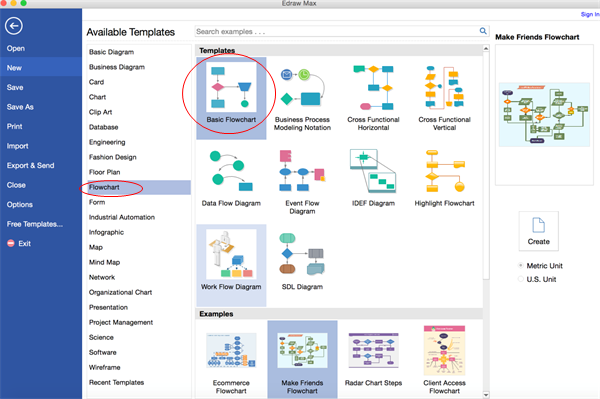
Launch the flowchart maker, on the File menu, go to New >Flowchart, and then double click Basic Flowchart to pen a blank drawing page for creating an audit flowchart.
Open Flowchart Drawing Page

Step Two: add flowchart shapes to the diagram from library

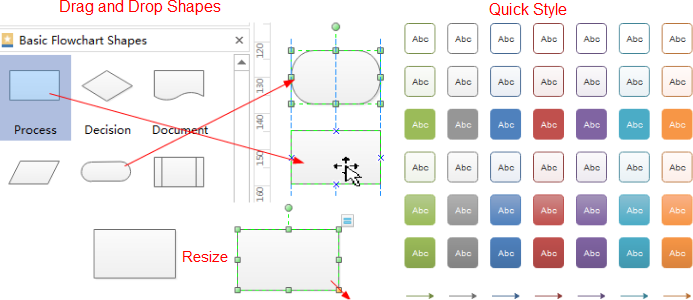
Library on the left panel of the program covers all flowchart shapes needed to draw an audit process flowchart, simply drag and drop them onto your drawing page.
Tips: you can change a shape's color and border by clicking any style under the Home tab in the Styles group.
add audit flowchart shapes to the diagram

Step Three: connect flowchart shapes

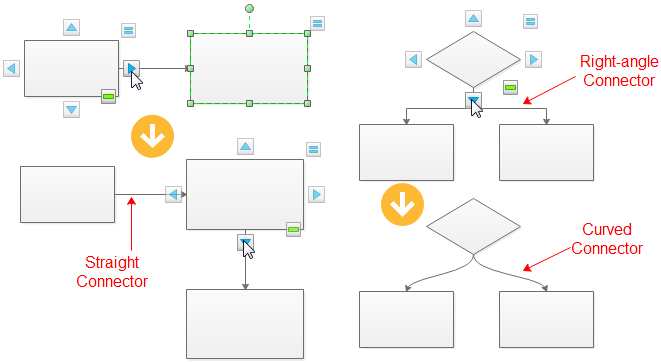
Shapes are connected automatically by clicking the floating action button to generate connectors between two shapes.
Tips: if two shapes are aligned, a straight connector is generated. If not, a right-angle connector will appear. -> Right click a connector to change its style.
Connect audit diagram Shapes Automatically
You can also use Connector tool under Home tab to connect shapes manually.

Step Four: add flowchart contents

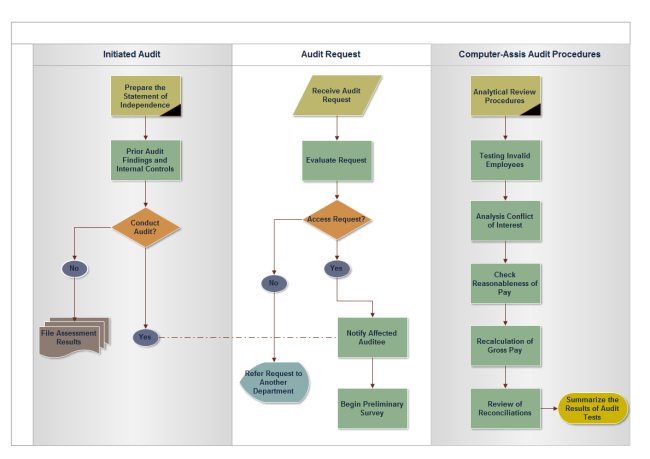
To add text content to a shape or connector, double click it, and then type. Click on any blank area of the page to finish typing. After that, you have completed an audit flowchart. 
complete an Audit Flowchart

Step Five: save or export completed audit flowchart

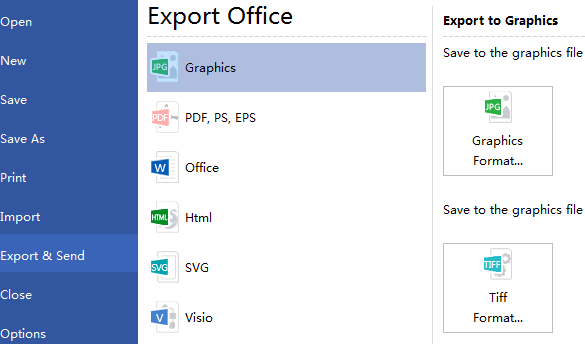
Click Save on File tab to save as the default .eddx format, or you can also select Export & Send under File to export the audit flow chart to images, PPT, PDF, Word format .etc.
Export Audit Flowchart
Click flowchart examples to view and download more examples.
For more detailed information, please refer to How to Create a Fantastic Flowchart.