显示标签为“infographic software”的博文。显示所有博文

2017年4月14日星期五

How to Edit An Existing Infographic Template to Your Needs

A simple guide on how to edit an existing infographic template to your needs and a quick overview of a powerful and humanized infographic maker.

Steps to Edit Existing Infographic Template

Below are detailed steps to edit infographic templates.

Step 1. Open A Template

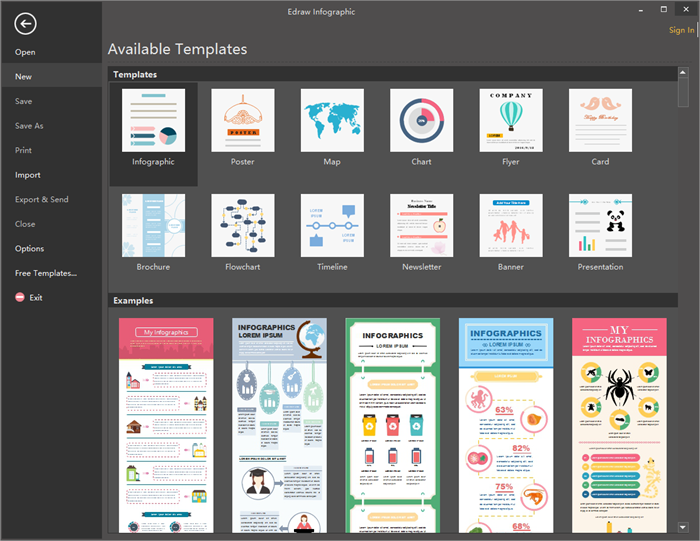
The first step is launching infographic software, clicking New > Infographic to open a infographic template.
Open An Infographic Template

Step 2. Change the Content

Pitch on the existing content and press Delete Tab to delete them, then adding your own text.
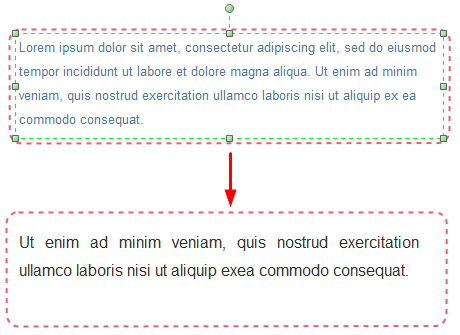
Change Content

Step 3. Replace The Icons

What we are going to do now is replacing the current infographic elements. Just opt for the existing icon and replace it with the icon you drag from the left libraries.
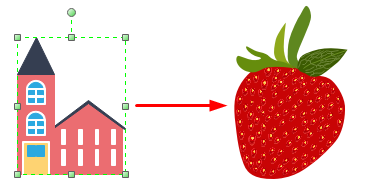
Replace Icons

Step 4. Substitute The Charts

After that, it’s time to delete the existing charts and substitute with your own charts and data.
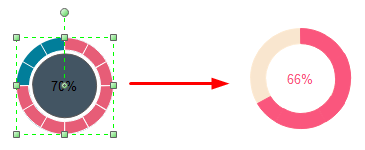
Substitute Charts

Step 5. Save or Export The Edited Infographic

The newly edited infographic is almost ready after finishing above steps. And now users can click Save on File tab to save the new infographic as the default .eddx format; or users can also choose Export & Send to under File menu to export the infographic to common formats for sharing more conveniently.
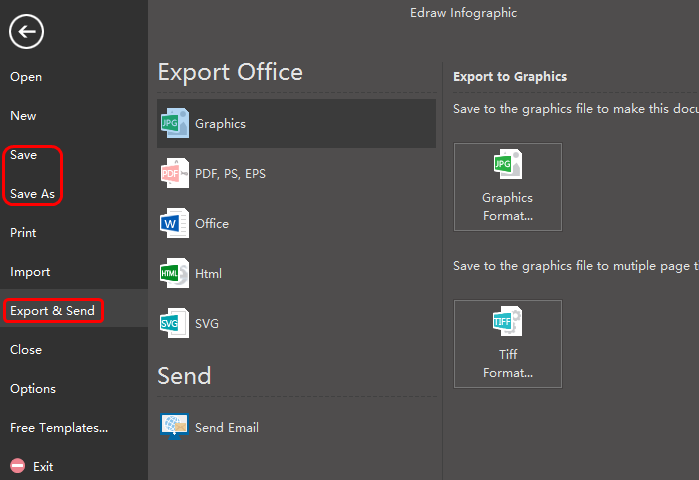
Save or Export Edited Infographics
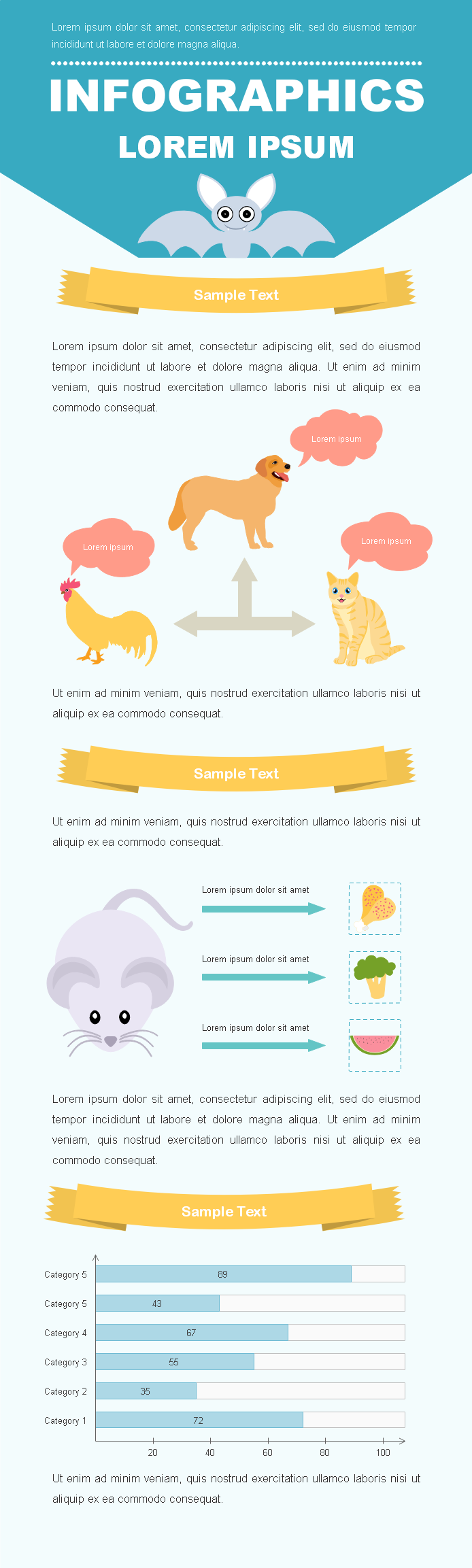
Below is the edited infographic template for your reference.
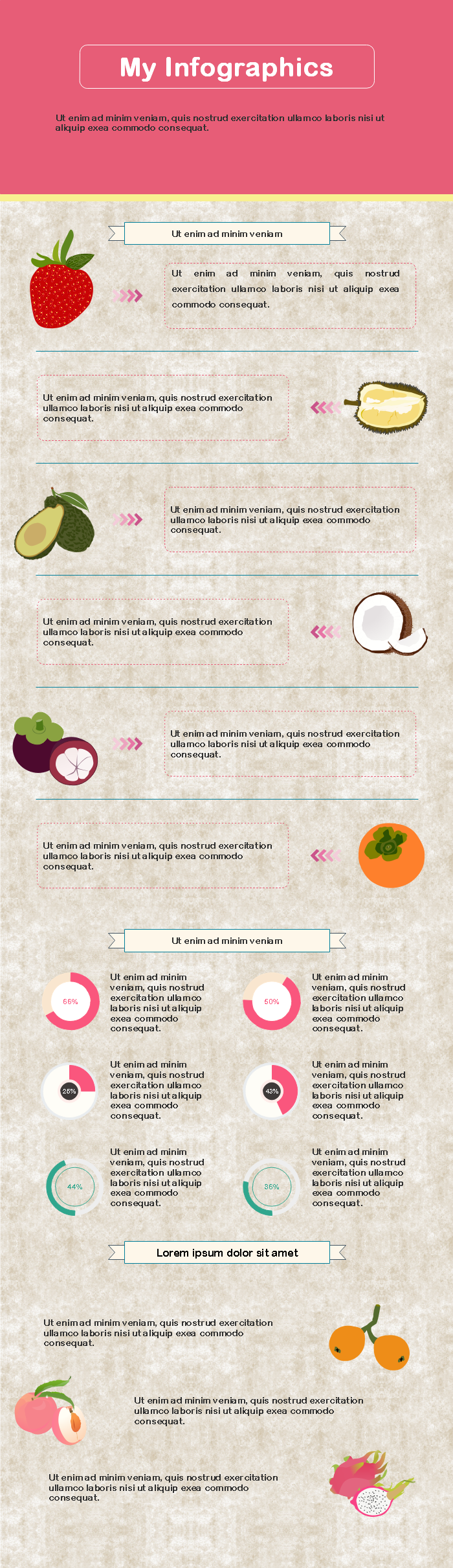
Edited Infographics

2017年4月10日星期一

How to Design Animal Infographics within Minutes

A simple guide on how to design animal infographics within several minutes will be introduced in the article.
Infographic software is a powerful and professional animal infographic maker which provides a large quantity of infographic elements and hundreds of templates for users to drag-and-drop. Even a newbie without any drawing skills can also create beautiful animal infographics with it. Following is a step-by-step drawing guide.
Animal Infographics

Step 1. Open A New Infographic Drawing Page

Launch infographic software, go to File menu, click New>Infographic to open a blank animal infographics drawing page.
Open Infographic Blank Page

Step 2. Drag and Drop Animal Symbols

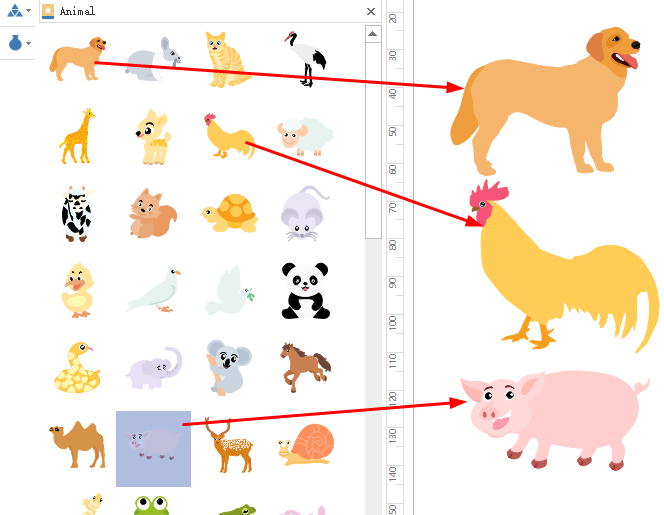
Navigate to left libraries, drag proper animal symbols and drop on the drawing page. All the infographic elements if provided are customizable, users can easily edit the dimensions, colors, directions, group/ungroup the symbols to meet the requirement of different situations. And it provides a set of drawing tools for users to create their own symbols if there they are not satisfied with the built-in ones.
Drag and Drop Animal Symbols

Step 3. Add Key Contents

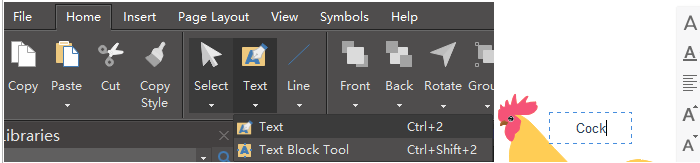
After dragging animal symbols, go to Home Page and click Text or press Ctrl+2 to add key points, then click any blank area or click Select to finish typing.
Add Infographic Content

Step 4. Choose Background

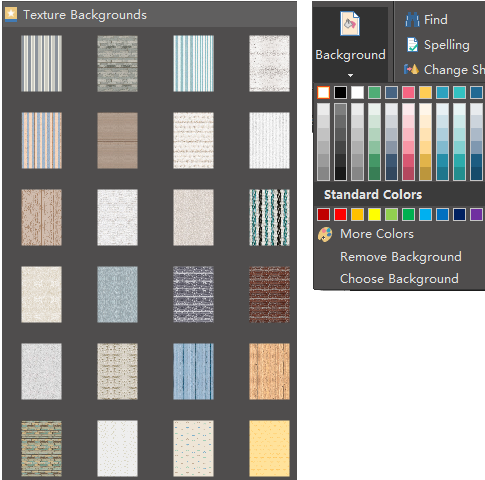
Users can click Background on the Home page to select a single color background or choose texture background from the left libraries.
Choose Background

Step 5. Save or Export Animals Infographics

Users can click Save on File tab to save the animal infographics as the default .eddx format; for sharing conveniently, users can also select Export & Send under File menu to export the infographics to any formats that convenient to share, such as Word, PPT, PDF, images or even Visio is supported.
Save or Export Animal Infographics